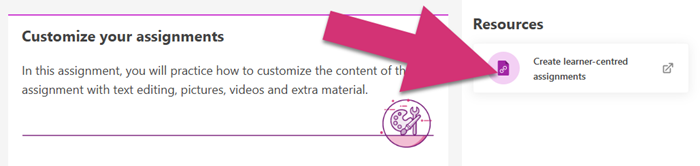
You can add links to the content in your program, this will convert the text to a clickable, highlighted link. When your program members click it, it enables them to navigate to other web content. In this article, you will learn some best practices about linking text and even images in your program.
Content in this article
Add a link
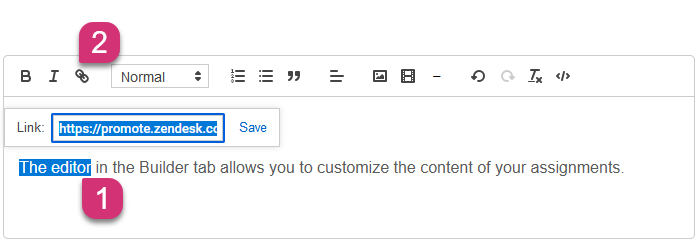
- Highlight the text or image you want to link
- Click the hyperlink icon on the toolbar, paste the link and Press 'Save'
Edit an existing link
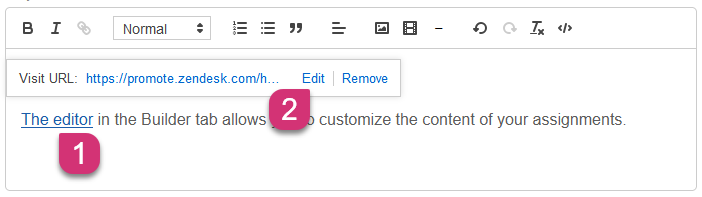
- Place the cursor anywhere in the linked text
- Press 'Edit', insert the updated link and Press 'Save'
Remove a link
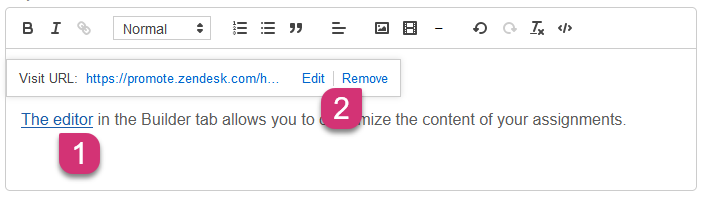
- If you want to remove a link you don't need to delete the linked text, just place the cursor anywhere in the linked text
- Press 'Remove'
Tips about links
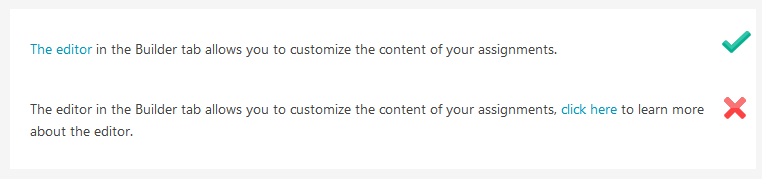
- To make it easy for your program members to find links in your text, hyperlink keywords or phrases. Don't hyperlink words like "here" or "click here".
- Don't insert and link the URL - URLs aren't reader-friendly and will make your text look messy.

- Add a link resource if you don't want to link to another location in your text. Also, consider adding the link as a resource if it will be used in many programs - in this way you can easily update the link to a new version and have it replaced in all programs where it is currently being used.